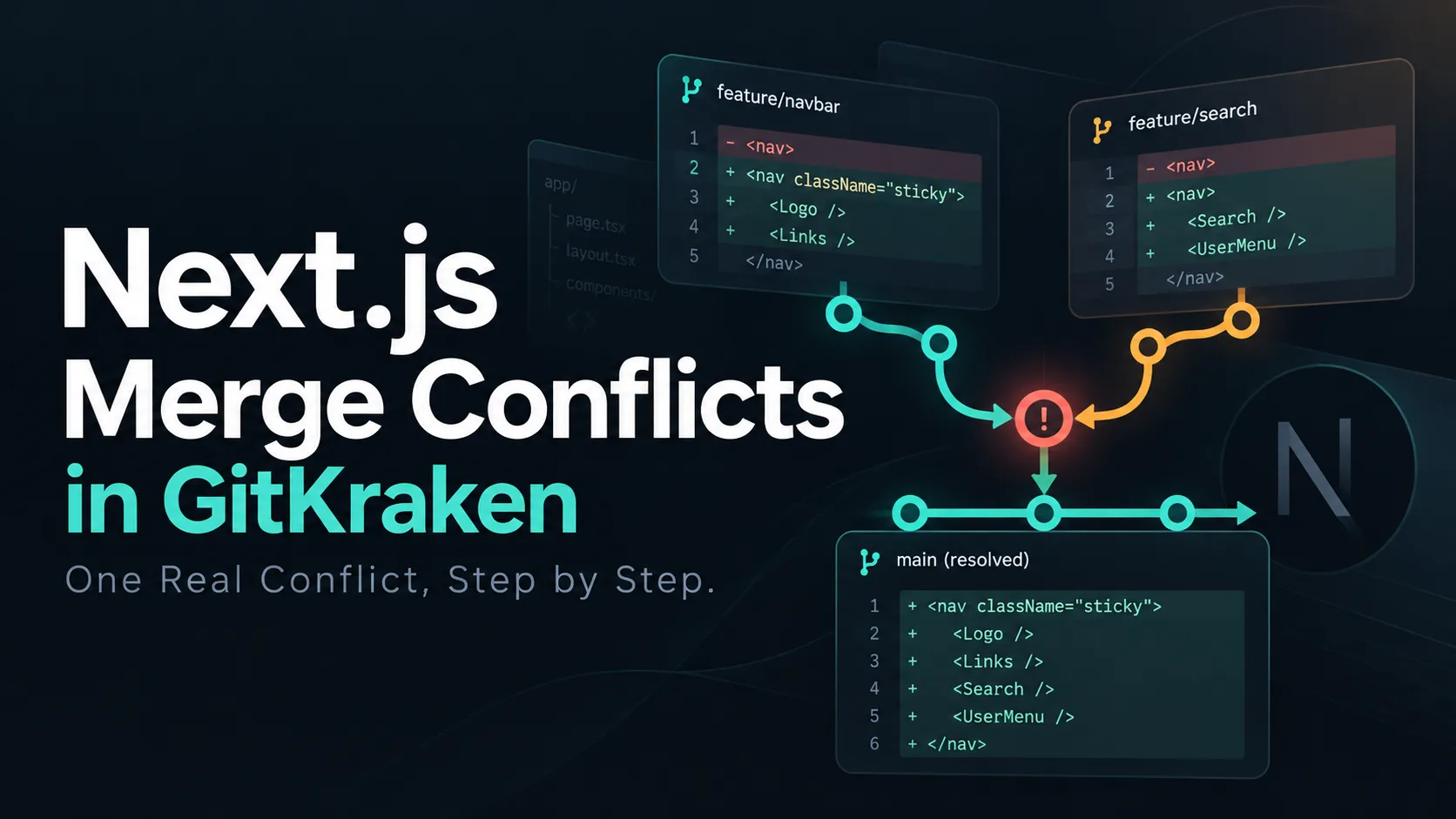
Your pull request was green this morning. Then a teammate's PR landed on main first, and now yours carries the little warning every team developer knows: this branch has conflicts that must be resolved. In a Next.js codebase, that usually means the same three suspects -- a shared layout or header component, package.json, and the lockfile nobody ever wants to read.
Merge conflicts have a reputation they only partly deserve. In my opinion, the conflict itself is rarely the problem. The problem is resolving it blind: staring at <<<<<<< markers in a text editor, picking a side to make the red go away, and hoping the build tells you if something went wrong. Spoiler: the build does not always tell you.
In this post, we will walk through one real conflict -- not a sanitized two-line example -- in a small Next.js app, from the early warning to the merge commit, using GitKraken Desktop. Every terminal output and every build result below comes from actually running it. We will also look at the one resolution that compiles, passes type-check, and still throws away a feature. That one is the reason I wrote this post.
The setup: two teammates, one header
Before we can resolve anything, we need a conflict worth resolving, so let's build a realistic one. The app is the website of a fictional restaurant chain -- Los Pollos Hermanos, naturally -- built with Next.js 16 and the App Router. Its SiteHeader component on main is as plain as it gets:
import Link from "next/link";

const links = [
  { href: "/", label: "Home" },
  { href: "/menu", label: "Menu" },
];

export function SiteHeader() {
  return (
    <header className="flex items-center justify-between border-b px-6 py-4">
      <Link href="/" className="font-bold">
        Los Pollos Hermanos
      </Link>
      <nav className="flex gap-4">
        {links.map((link) => (
          <Link key={link.href} href={link.href} />
            {link.label}
          </Link>
        ))}
      </nav>
    </header>
  );
}
Now two people pick up two tickets on the same morning. Let's say my teammate Maya works on feature/order-online. She adds an "Order online" link and highlights the active page. For that, she needs usePathname, which only works in a Client Component, so she adds the "use client" directive. She also adds clsx, a tiny helper for conditional class names, and she hides the nav on small screens.
I work on feature/locations. I add a "Locations" link, a small cart button with an icon from lucide-react, and I give the nav a bit more spacing. Neither of us did anything wrong. We just both touched the most central component of the app, which is exactly what happens in real teams every week.
Maya's PR is merged first. The history now looks like this, and my branch is the one that has to catch up.
The dashed arrow is the merge we are about to do. Both branches started from the same base commit, and that common ancestor is what makes the rest of this post work.
Step 1: See the conflict before you merge
The cheapest conflict is the one you know about before you start the merge, so let's look for it first. GitKraken Desktop has a feature called Conflict Prevention that checks your branch against its target branch and shows an alert icon when a merge is likely to conflict. If your teammates are members of your GitKraken Org, it goes one step further and also flags overlapping edits in their committed but not-yet-merged work, with options to share your edits as a Cloud Patch or copy a summary of the overlap for your team.
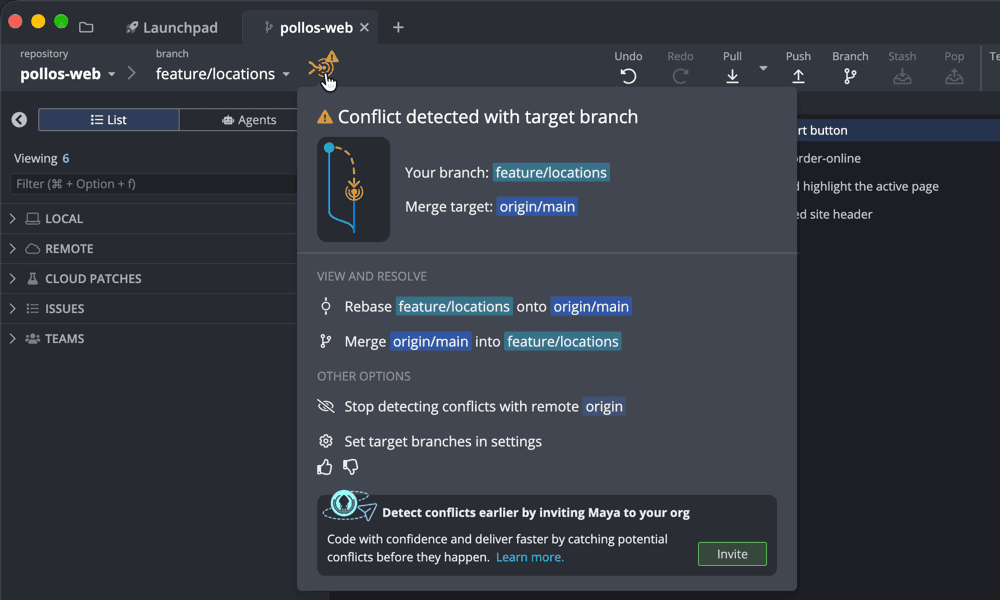
In my scenario, the warning icon sits right next to the branch name before I have typed a single merge command. Clicking it shows "Conflict detected with target branch", names my branch and the merge target origin/main, and offers to rebase my branch onto origin/main or to merge origin/main into it, right from the menu. It even noticed whose work I'm colliding with and suggests inviting Maya to the org, so that the next overlap shows up while her changes are still on her branch. In a team, that's the moment to send Maya a quick message ("I'm touching the header too, I'll merge main in now") instead of discovering the overlap during code review. Note that Conflict Prevention is a paid feature; GitKraken's documentation lists it for the Pro tier and higher.
You might wonder whether plain Git can do this, too. It can, with a bit of ceremony. Since Git 2.38, git merge-tree --write-tree computes a merge entirely in memory and, according to its documentation, "does not read from or write to either the working tree or index." This is the real output for our branches:
$ git merge-tree --write-tree --name-only feature/locations main
8dcbff5bfcf79df7704fc8d925cb591dbe81f487
components/site-header.tsx
package.json
pnpm-lock.yaml

Auto-merging components/site-header.tsx
CONFLICT (content): Merge conflict in components/site-header.tsx
Auto-merging package.json
CONFLICT (content): Merge conflict in package.json
Auto-merging pnpm-lock.yaml
CONFLICT (content): Merge conflict in pnpm-lock.yaml
The command exits with status 1 when the merge would conflict, which makes it useful in scripts and CI. The difference to GitKraken is simply who has to remember to ask. The CLI answers when you run it; Conflict Prevention keeps watching while you work.
Step 2: Merge, and look at what Git already did for you
Knowing about a conflict does not make it go away, so now we merge main into feature/locations. In GitKraken, you drag main onto your branch in the graph, right-click main and choose Merge, or simply click "Merge origin/main into feature/locations" in the Conflict Prevention menu from Step 1. The result is the same as on the command line:
$ git merge main
Auto-merging components/site-header.tsx
CONFLICT (content): Merge conflict in components/site-header.tsx
Auto-merging package.json
CONFLICT (content): Merge conflict in package.json
Auto-merging pnpm-lock.yaml
CONFLICT (content): Merge conflict in pnpm-lock.yaml
Automatic merge failed; fix conflicts and then commit the result.
Three conflicting files, and that's where most people's pulse goes up. Before we touch anything, though, it's worth understanding what Git actually did. Git performs a three-way merge: it compares each region of the file against the common ancestor. If only one side changed a region, Git takes that change without asking. Only when both sides changed the same region does it stop and hand the decision to you.
For our header, that comparison breaks down region by region like this.
Three regions conflict, three were merged without a word. That's Git doing its job well, and most of the time it's exactly what you want. However, look at the first row. Maya's "use client" was merged into my version of the file silently. My cart button, which I wrote and tested inside a Server Component, now renders inside a Client Component and ships to the browser. Here, that's harmless. In a component that reads a secret or queries the database directly, it would not be. Thus, in a Next.js codebase, "no conflict" does not mean "nothing to look at." A merge can move the server/client boundary without a single conflict marker.
This is what the file looks like on disk right now:
"use client";

import Link from "next/link";
<<<<<<< HEAD
import { CartButton } from "./cart-button";
=======
import { usePathname } from "next/navigation";
import clsx from "clsx";
>>>>>>> main

const links = [
  { href: "/", label: "Home" },
  { href: "/menu", label: "Menu" },
<<<<<<< HEAD
  { href: "/locations", label: "Locations" },
=======
  { href: "/order", label: "Order online" },
>>>>>>> main
];

export function SiteHeader() {
  const pathname = usePathname();

  return (
    <header className="flex items-center justify-between border-b px-6 py-4">
      <Link href="/" className="font-bold">
        Los Pollos Hermanos
      </Link>
<<<<<<< HEAD
      <nav className="flex items-center gap-6">
=======
      <nav className="hidden gap-4 md:flex">
>>>>>>> main
        {links.map((link) => (
          <Link
            key={link.href}
            href={link.href}
            aria-current={pathname === link.href ? "page" : undefined}
            className={clsx(pathname === link.href && "font-semibold underline")}
           />
            {link.label}
          </Link>
        ))}
        <CartButton count={0} />
      </nav>
    </header>
  );
}
HEAD is my branch, main is Maya's merged work. Readable? Sure, for 48 lines. Now imagine this in a 400-line page component with eight hunks, at 5:30 PM on a Friday. That's where the panic comes from.
Step 3: Open the conflict in GitKraken
A visual tool earns its keep exactly here, so let's switch from the text file to GitKraken. After the failed merge, a banner across the graph reports "3 file conflicts were found when attempting to merge into feature/locations", and the Commit Panel switches into merge mode: the conflicted files, an empty list of resolved files, and a red Abort Merge button right where the commit button usually sits.
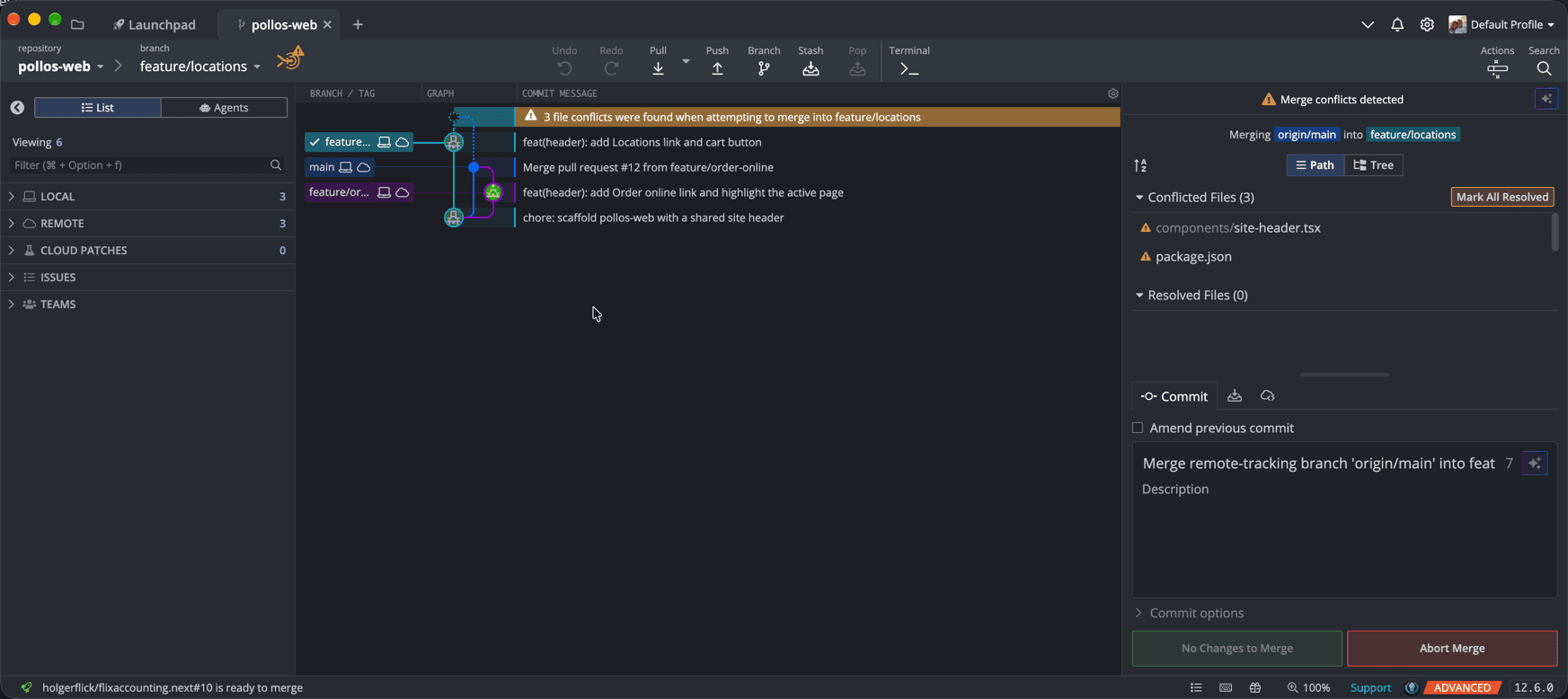
Clicking a file opens the Merge Tool: my branch as A on the left, origin/main as B on the right, each labeled with its commit, and the Output at the bottom. The output already contains everything Git merged on its own -- "use client" and usePathname are right there -- and leaves the conflicting regions for you to fill. A counter reads "conflict 1 of 3", with arrows to jump between them.
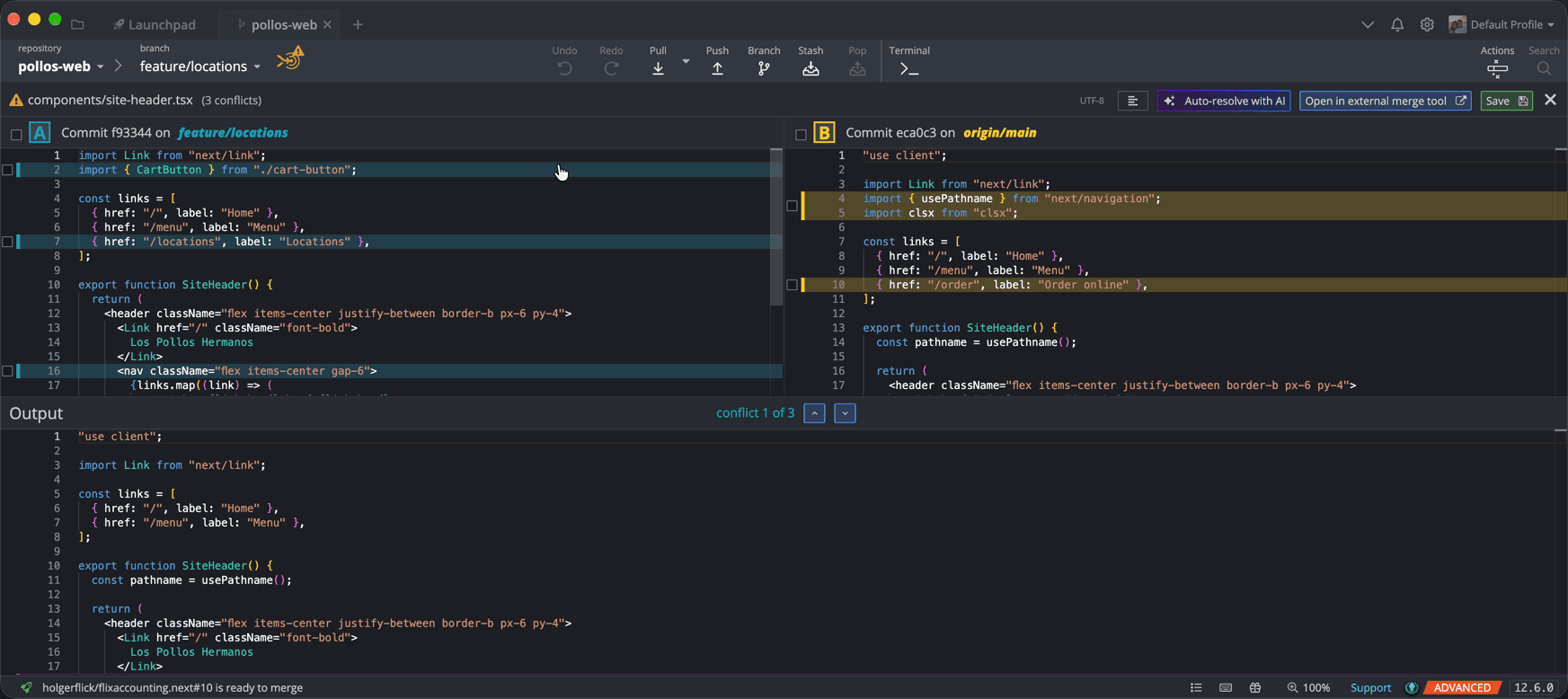
site-header.tsx: my branch (A) on the left, origin/main (B) on the right, the syntax-highlighted output at the bottom.You resolve a hunk by ticking the checkboxes next to the lines you want in the output; a checkbox in each side's header takes that whole side at once. The output panel is syntax-highlighted and editable, which matters more than it sounds, as we will see in a second. Once you save the output, GitKraken stages the file and you move on to the next one. Thus, you work through a merge file by file, hunk by hunk, instead of facing three files of markers at once.
I like this approach because it changes the question you ask yourself. With markers in a text file, the question is "which block do I delete?" With two sides and a live output, the question becomes "what should this code look like?" That's a better question.
Step 4: Three hunks, three different answers
The three hunks in our header look alike, but each one needs a different decision, so let's go through them one at a time.
- The imports. I added
CartButton, Maya addedusePathnameandclsx. The file needs all three, because the silently merged parts of the file use all three. Tick both sides. - The links array. I added "Locations", Maya added "Order online". Again, both belong in the result. The only real decision is the order of the menu items, which is a product question, not a Git question. Tick both sides, in the order you want them.
- The
<nav>line. Here, "take both" is wrong. Both of us changed the same attribute of the same element, and the output can only contain one<nav>opening tag.
You might think the third hunk is too obvious to get wrong. Honestly, cross my heart, I tried it on purpose to see what happens, and the result is instructive. Taking both sides produces two opening <nav> tags. TypeScript catches it:
$ pnpm typecheck
components/site-header.tsx(23,8): error TS17008: JSX element 'nav' has no corresponding closing tag.
next build catches it as well, but Turbopack reports the parse error at line 39 -- the closing brace of the component, sixteen lines below the actual mistake:
$ pnpm build
▲ Next.js 16.3.8 (Turbopack)
  Creating an optimized production build ...
> Build error occurred
Error: Turbopack build failed with 1 error:
./components/site-header.tsx:39:1
Error: Unexpected token. Did you mean `{'}'}` or `}`?
No surprises here: a parser only notices a missing closing tag when it runs out of file. That's exactly why I prefer to see the output while I'm building it rather than reading a compiler error afterward. In the Merge Tool, the doubled <nav> sits right there in the output panel the moment you tick the second box.
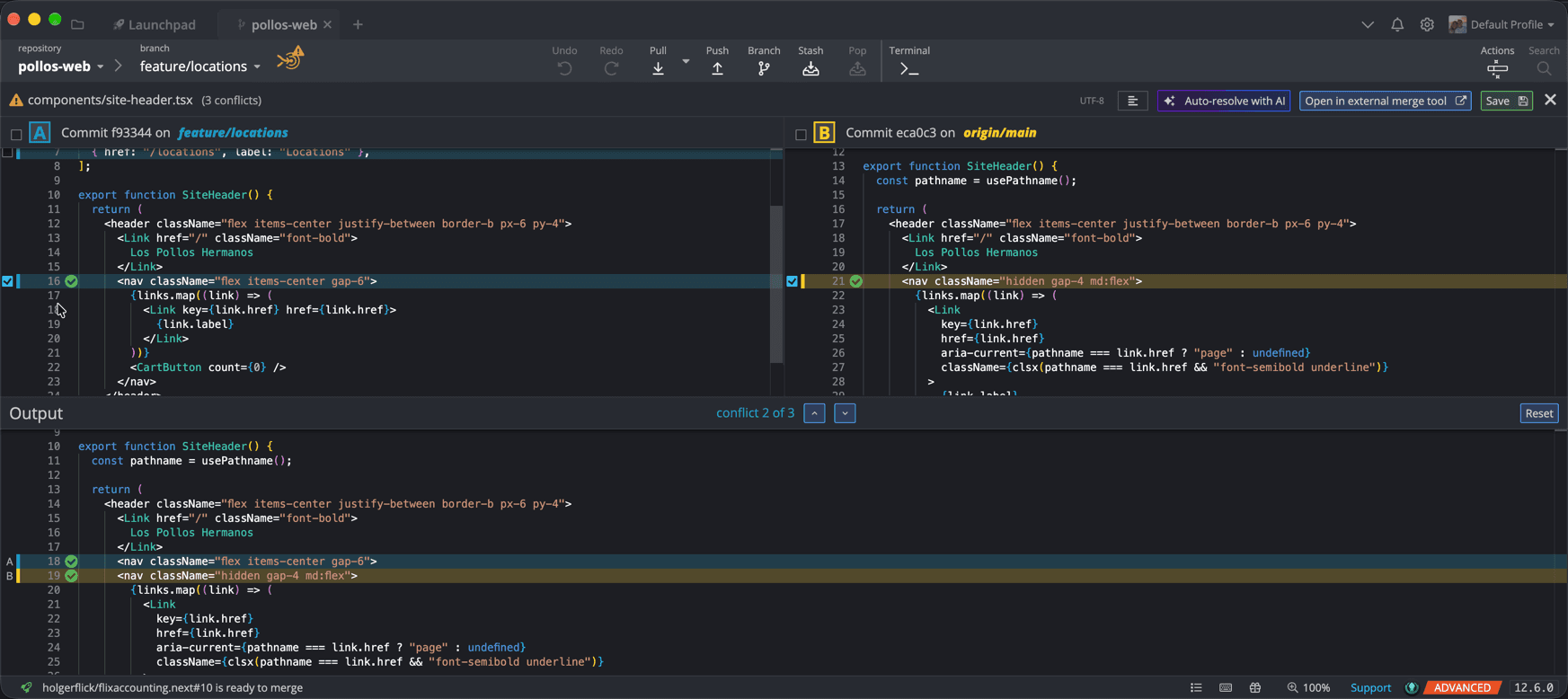
<nav> hunk: the two opening tags sit on top of each other in the output, marked A and B in the gutter -- no build needed to spot it.The right answer for this hunk is neither side. Maya wanted the nav hidden on small screens; I wanted more spacing and vertical centering. So we pick one line and edit it directly in the output panel to combine both intents:
<nav className="hidden items-center gap-6 md:flex">That's the manual-edit case, and it's the one that a "pick a side" mindset never reaches. After saving, this is the complete resolved file. It type-checks and builds.
"use client";

import Link from "next/link";
import { CartButton } from "./cart-button";
import { usePathname } from "next/navigation";
import clsx from "clsx";

const links = [
  { href: "/", label: "Home" },
  { href: "/menu", label: "Menu" },
  { href: "/locations", label: "Locations" },
  { href: "/order", label: "Order online" },
];

export function SiteHeader() {
  const pathname = usePathname();

  return (
    <header className="flex items-center justify-between border-b px-6 py-4">
      <Link href="/" className="font-bold">
        Los Pollos Hermanos
      </Link>
      <nav className="hidden items-center gap-6 md:flex">
        {links.map((link) => (
          <Link
            key={link.href}
            href={link.href}
            aria-current={pathname === link.href ? "page" : undefined}
            className={clsx(pathname === link.href && "font-semibold underline")}
           />
            {link.label}
          </Link>
        ))}
        <CartButton count={0} />
      </nav>
    </header>
  );
}
The resolution that compiles and is still wrong
Now for the scenario that actually costs teams features, and it has nothing to do with syntax errors. Under time pressure, the fastest way out of a conflict is to take one side of the whole file. On the command line, that's git checkout --theirs, which checks out "stage #3 (theirs)" for an unmerged path. Let's do exactly that for the header, resolve the other two files properly, and run the checks:
$ git checkout --theirs components/site-header.tsx
Updated 1 path from the index
$ # package.json and pnpm-lock.yaml resolved as shown in the next section
$ pnpm typecheck
$ pnpm build
✓ Compiled successfully in 862ms
  Finished TypeScript in 560ms ...
✓ Generating static pages using 4 workers (3/3) in 159ms
Everything is green. Type-check passes, the build passes, CI would pass. And my "Locations" link and my cart button are gone -- not just the conflicting lines, but every change I made to the file, including the regions Git had merged correctly. cart-button.tsx still exists and still compiles; it's just no longer used anywhere. Nothing complains about an unused component.
This is the classic "Git ate my code" moment, and to be fair to Git, Git didn't eat anything. The resolution did. GitKraken offers the same whole-file shortcut on purpose: right-click a conflicted file and choose "Take current" or "Take incoming." It's the right tool when one side genuinely replaces the other -- a generated file, or a component one teammate rewrote from scratch. For a file both of you extended, it's the green-build trap.
I think every developer who works in a team knows this situation. You notice a bug, you fix it, and you're ready to merge -- and at the very same time, a teammate noticed something else in the same file and fixed that. Two perfectly good changes, one file, and now you're the one who has to put them together without losing either. For me, that moment was always a nightmare, whether I sat at the command line or used one of the other UIs I tried over the years. Seeing the warning before the merge, both sides and the output in one window, and an AI that drafts the tedious hunks for me is what finally took the dread out of it.
The lockfile: let pnpm do it
The two remaining conflicts are in package.json and pnpm-lock.yaml, and they follow a different rule: fix the manifest by hand, then let the package manager rebuild the lockfile. The package.json conflict is trivial, since we both added one dependency on adjacent lines:
  "dependencies": {
<<<<<<< HEAD
    "lucide-react": "1.50.0",
=======
    "clsx": "2.1.1",
>>>>>>> main
    "next": "16.3.8",
Both dependencies stay. In the Merge Tool, that's ticking both lines and putting them in alphabetical order. The lockfile, on the other hand, is not something you should resolve line by line. pnpm's documentation states it plainly: "pnpm can automatically resolve merge conflicts in pnpm-lock.yaml. If you have conflicts, just run pnpm install and commit the changes." This is what that looks like for real:
$ pnpm install
Merge conflict detected in pnpm-lock.yaml and successfully merged
Packages: +1
+
Progress: resolved 62, reused 32, downloaded 0, added 0, done

dependencies:
+ clsx 2.1.1

Done in 320ms using pnpm v10.33.2
Neat. The same docs add an honest caveat: "we cannot guarantee that pnpm will choose the correct head", so a quick look at the lockfile diff in the commit view is still a good idea. If your team uses npm, the legacy npm docs describe the same pattern: fix package.json conflicts by hand, then run npm install again.
Letting AI take the first pass
For the hunks that are tedious rather than tricky, GitKraken can propose a resolution for you. Since version 11.2, the Merge Tool has an Auto-resolve with AI button. According to the GitKraken AI documentation, it fills the output panel with a proposed resolution, a detailed explanation, and a confidence level for each conflicted hunk. You then review it, edit it, accept it, or discard it.
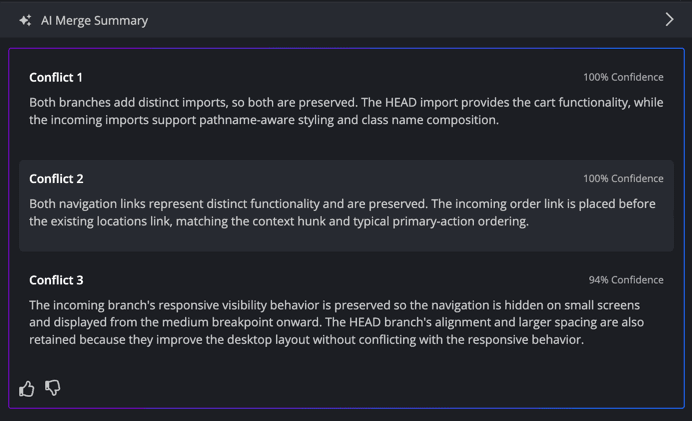
On our header, the AI got all three hunks right in substance. It kept both import blocks and both menu links, each with 100% confidence. For the <nav> line, it did what I did by hand: it preserved Maya's responsive visibility -- hidden on small screens, shown from the medium breakpoint on -- and kept my alignment and larger spacing, at 94% confidence. Honestly, that's the hunk I expected it to fumble. The one place where I'd decide differently is a matter of taste: it put "Order online" before "Locations", reasoning that this matches "typical primary-action ordering." In my resolution above, Locations comes first. Both orders are defensible, but it's a product decision, and the AI made it with 100% confidence.
My take on AI resolution is simple: it's a fast first draft, and the confidence levels tell you where to read first, not where to stop reading. The documentation itself says to use it when you "plan to review the result carefully," and I agree. The import and links hunks are exactly the kind of busywork I'm happy to hand off. Still, the menu order shows how I read that confidence number: it says how sure the model is about the merge, not whether your product owner wants "Order online" first. Anything where a merge changes behavior or intent rather than adding lines deserves a human who knows what both teammates meant. Also note that the feature is still marked as Preview and requires a paid GitKraken subscription. If you'd rather point it at your own model, GitKraken lets you configure a custom endpoint for AI tasks, conflict resolution included.
Undo: four safety nets, depending on how far you got
The fear in "I'll break everything" is really a fear of irreversibility, so it helps to know exactly what can be undone at which point. The honest answer is that there isn't one magic undo button for a merge; there are four safety nets, and which one applies depends on how far you got.
The first two nets cover the whole resolution process. As long as the merge isn't committed, every checkbox is reversible, and if you lose track entirely, you can abort. While a merge is in progress, GitKraken grays out its toolbar Undo button; the way back at this stage is the red Abort Merge button you saw in the Commit Panel in Step 3. It does what git merge --abort does: "Abort the current conflict resolution process, and try to reconstruct the pre-merge state." Note the word try. The Git docs recommend to "always commit or stash your changes before running git merge", because uncommitted local changes may not survive an abort. Thus, start every merge from a clean working tree. Just remember that one, and the abort is a reliable emergency exit.
The third net is where GitKraken's Undo button comes in. Its documented list of undoable actions doesn't include merging itself, but it does include "Reset branch to a commit". So if you committed a bad merge and haven't pushed it, reset your branch to the commit before the merge, and if the reset turns out to be the wrong call, press ⌘Z (Ctrl+Z on Windows and Linux) and it's undone. That's a comfortable place to experiment from. Once the merge is pushed, the respectful option is git revert -m 1 on the merge commit, plus a message to your team. Rewriting shared history is how a merge problem becomes a team problem.
The same conflict in VS Code and on the command line
GitKraken is not the only way to resolve this conflict, and the alternatives deserve their credit. VS Code shows CodeLens actions directly above each conflict -- "Accept Current Change", "Accept Incoming Change", "Accept Both Changes", and "Compare Changes" -- and has a full three-way Merge Editor (first available as an opt-in in version 1.69) with incoming and current side by side and the result below. One thing it does nicely is show the common ancestor, which the docs describe as "the common version against which Git compares the two sides," available under the editor's More Actions menu. If your whole team lives in VS Code, that's a capable setup, and its "Accept Both Changes" button will happily produce our double <nav> just the same. The tool shows you the problem; you still decide.
On the command line, my one recommendation is to change Git's conflict style. With zdiff3 (added in Git 2.35), the markers include the base version, and suddenly the <nav> hunk explains itself:
$ git config --global merge.conflictStyle zdiff3
$ git merge main
...
<<<<<<< HEAD
      <nav className="flex items-center gap-6">
||||||| 5ba0670
      <nav className="flex gap-4">
=======
      <nav className="hidden gap-4 md:flex">
>>>>>>> main
With the base visible, it's obvious that both sides started from flex gap-4 and changed different things -- which is exactly the hint that you need to combine them rather than choose. If you'd like a free, open-source graphical tool outside the editor, Meld (GPLv2) offers "three-way merge assistance with conflict handling and base version display", and KDiff3 (GPL-2.0) compares and merges up to three files. KDiff3 is also among the external merge tools GitKraken lets you plug in under Preferences > General, alongside Beyond Compare, P4Merge, and others, and the Merge Tool has an "Open in external merge tool" button right next to Save.
Where GitKraken stands out for me is the combination: the warning before the merge, the file-by-file list of conflicts, the editable output, AI for the busywork, and the graph to see what you just did -- in one window, without assembling the pieces yourself. If you liked the graph angle, I wrote about it in Visualizing Your Git History, and about where GitKraken is heading in GitKraken Is Now the Code Flow Company.
Habits that keep conflicts small
The best conflict resolution is a smaller conflict, so here are the habits that I see working in Next.js teams. Merge main into your feature branch early and often; the conflict in this post took minutes because it was one day old, not three weeks. Keep shared components like headers and layouts small, so that two tickets are less likely to touch the same lines. Treat lockfiles as generated artifacts and let the package manager resolve them. And if you resolve the same conflict over and over, for example during a long-running branch, enable git rerere, which records your hand resolutions and replays them the next time the same conflict shows up.
The Bottom Line
Our conflict had three files, three hunks in the component, and three different right answers: take both, take both in the right order, and edit by hand. The lockfile resolved itself once package.json was sorted out. The real danger was never the markers; it was the whole-file shortcut that passed every automated check and silently deleted a feature, and the merge that quietly turned a Server Component into a Client Component without asking.
Merge conflicts become boring once you can see what's colliding, choose per hunk instead of per file, and know your way back from every step.
That's what GitKraken gives me: the warning before I merge, the two sides and the output next to each other, an AI draft for the tedious hunks, and a clear way back. If you'd like to try it on your team's next conflict, my referral link gets you 50% off GitKraken Pro: try GitKraken Pro. Full disclosure: it's a referral link. The Community edition is free for local repositories and public remotes, so you can kick the tires on an open-source project first.